Automatic Guest records
When people visit your site, a record in the People database is automatically created for them. These are guest records. If they choose to register on the site, the form they complete may add a username and password to thier guest record, making it a user record. If they then return to the site and use that username/password, they will be assigned the rights given that original record.
Adding a New Person
Login as an Administrator and go to ADMIN HOME. Click on MANAGE USERS and then PEOPLE, as shown below:
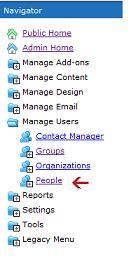
This will show a list of all People in your database on the right side of your screen. Click the ADD button at the top of the screen to open a new People record.
There are several TABS in each people record where you can enter data. Each section is described below:
Details Tab. In this section you will add the user's name, email, company, title, mailing address, website, phone, fax, and any notes you wish to add. Also, you can check the Custom Pricing box if this user is entitled to special pricing for any items sold on your website through the Contensive Shopping Cart.
Analytics Tab. Here you can check the Exclude from Contensive Analytics box if you don't want to track this user.
Billing Tab. In this tab you enter billing information, such as name, email, phone, fax, company and billing address.
Permisions Tab. This is where you can add the person's username and password. You can also check the boxes available to specify whether the user should be included in group email and are allowed to login automatically on subsequent visits. Check the Administrator box to give the user the ability to edit all content on the site.
Personalize Tab. You can enter special information for a user, such as a nickname, birthday and image file.
Shipping Tab. In this tab you enter shipping information, such as name, company and shipping address.
Topics Tab. If the user is interested in certain topics on your site, you can check the relevant topics here.
Groups Tab. Check any groups which you would like add this person to. You can also specify an expiration date.
Click OK when you are done adding the person to save your changes.
Editing Existing Users
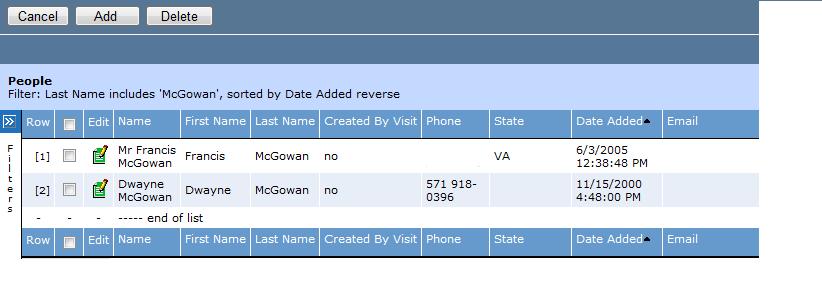
To see the people records for your site, login as an Administrator and go to ADMIN HOME. Click on MANAGE USERS and then PEOPLE, as shown above. To locate the record that you'd like to edit, you can enter the user's first name, last name, or email in the appropriate field at the bottom of your screen (as shown below) and then click FIND.

When you see the person you'd like to edit, click on the paper/pencil icon next to that person (see screen below) to open up their record. You can edit any of the tabs described in the "Adding A New Person" section above. Remember to click OK when you are done editing the record to save your changes.